


Need to merge a PDF, shrink an image, calculate a percentage change or clean copied text? Free online tools can handle these small jobs without turning them into a larger project. The key is to choose the right utility, check its limits and verify the output.
FreeTulz organizes online tools by category, so you can start with the task you need to complete. This guide explains where to look, how to use the main categories and what to check before relying on the result.
How to choose a free online tool
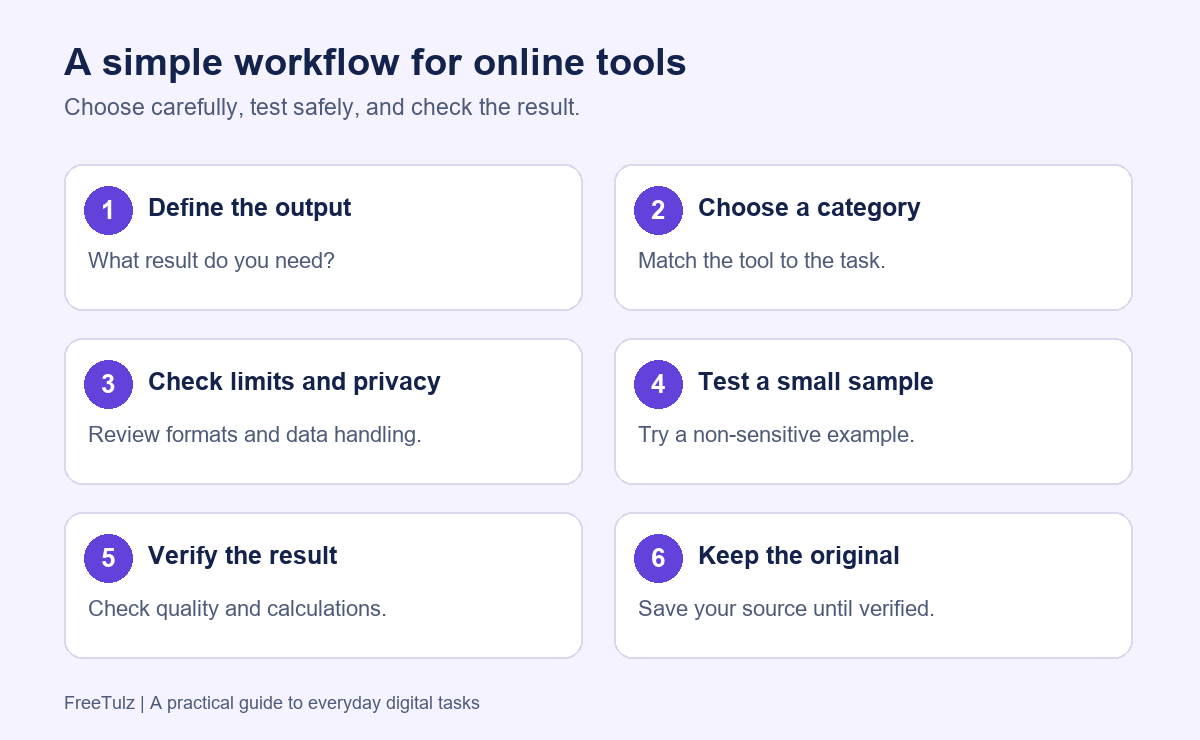
- Define the output. Be specific: one merged PDF, an image under a size limit, cleaned text or a percentage increase.
- Choose the matching category. Look for the operation you need, rather than selecting a tool only because it supports your file type.
- Check the conditions. Review supported formats, file-size limits, signup requirements, download options and data handling.
- Test a small sample. Use non-sensitive data and a result you can check independently.
- Inspect the output. Open the download and compare formatting, values and completeness with the source.
- Keep the original. Save an untouched copy until the result has been verified.
Which FreeTulz category should you use?
| Your task | Start here | Check the result |
|---|---|---|
| Merge, split or work with PDF files | PDF Utilities and Edit & Sign PDF | Page count, order and orientation |
| Convert a PDF or create one from another format | Convert from PDF or Convert to PDF | Text, tables and layout |
| Resize, compress or convert an image | Image Tools | Dimensions, file size and clarity |
| Calculate a percentage or a financial estimate | Percentage Calculators and Finance & Business Calculators | Inputs, units and assumptions |
| Clean, count or compare text | Text & Formatting Utilities | Meaning, spacing and paragraph breaks |
| Check a web page or prepare metadata | Web & SEO Utilities | Final URL, page source and visible content |
| Format data or encode a value | Developer & Code Utilities | Syntax and decoded output |
| Convert audio or process a video | Audio & Video Tools | Playback, duration and audio quality |
Each tool page has its own inputs and capabilities. A category listing is a starting point; confirm that the individual tool supports the exact operation and format you need.
Free online PDF tools for everyday document tasks
PDF tools do different jobs. Combining files, extracting text and rebuilding a table in a spreadsheet are separate operations. Choosing the narrowest suitable tool usually gives you fewer settings to manage and fewer opportunities to change content unintentionally.
Merge and split PDF files
Suppose you have a traffic report, a campaign summary and an invoice. To create one monthly report, use a merge tool, arrange the files in the required order and generate the combined document. Open the download and confirm the page count and the transition between each file.
When splitting a PDF, choose the pages or ranges you need. Use the viewer’s actual page index, especially if the document has an unnumbered cover. Printed page numbers and file-page positions may differ.
Convert PDF to Word or Excel
PDF-to-Word conversion reconstructs editable content from a fixed layout. Test a representative page if the source has columns, footnotes, forms or complex tables. Look for shifted line breaks, missing text and reading-order problems.
For PDF-to-Excel conversion, compare row counts, column labels and totals with the original table. Dates, decimal separators, percentages and negative values can be interpreted incorrectly. A value displayed as (450), for example, may be returned as text even when the source uses parentheses to indicate a negative number.
A scanned PDF stores page content as images. If you need editable text, browse OCR Tools and check the extracted output against the visible document. Names, numbers and multi-column layouts deserve particular attention.
Edit, sign and protect PDF documents
Basic PDF editing can include adding text, annotations or a visual signature. A pasted signature image is different from a certificate-backed digital signature. Check the recipient’s requirements before preparing a document for a formal signing process.
For protection tasks, explore PDF Security Tools. Review the individual tool’s capabilities and keep a secure source copy. A password setting does not, by itself, explain how uploaded files are processed or retained.
Online calculators that make the inputs clear
A useful calculator has clear labels, units and assumptions. Before using a result in a report or comparison, test a simple case you can calculate independently.
Calculate percentage increase correctly
If revenue rises from 18,400 to 21,160, the increase is 2,760. Divide that change by the original value, then multiply by 100:
Percentage change = ((new value − original value) ÷ original value) × 100
In this example, (2,760 ÷ 18,400) × 100 gives a 15% increase. A negative result indicates a decrease. If the original value is zero, this conventional formula is undefined because it requires division by zero.
Check financial-calculator assumptions
Compound-interest estimates depend on the principal, rate, compounding frequency and duration. If you add recurring contributions, check whether they are made at the beginning or end of each period. The timing changes the result.
Loan-payment estimates may omit fees, taxes, insurance or balloon payments. For a monthly budget, convert annual expenses into monthly reserves: an annual subscription costing 1,200 represents 100 per month. Use these tools to understand scenarios, then verify any assumptions that matter to your decision.
Image tools for smaller files and the right dimensions
Use image compression when a file is too large, resizing when its pixel dimensions are wrong and format conversion when another application needs a different file type. These operations solve different problems.
For a photograph, JPEG is often a practical choice. PNG supports transparency and can suit interface graphics. Keep the original and compare the converted or compressed image at the size where it will actually be displayed.
- After compression, inspect text, edges and detailed areas for visible damage.
- After resizing, confirm both the width and height. Preserving the aspect ratio helps avoid stretching.
- After background removal, check hair, fine edges and transparent areas.
- For a passport-photo layout, verify the destination authority’s current dimensions and requirements before submission.
Start with the FreeTulz Image Tools category and select the operation that matches your intended output.
Text tools for cleanup and careful rewriting
Text utilities can remove duplicate lines, normalize spacing, change letter case, count words or compare versions. Work from a copy and apply one transformation at a time when accuracy matters. Bulk changes can damage paragraph structure or remove punctuation you intended to keep.
For example, a marketing report assembled from email notes and copied document text may have repeated bullets and inconsistent spacing. Remove duplicates first, then normalize spacing in a separate pass. Read the result before placing it in the final report.
AI Writing Tools offer additional writing helpers. Review the individual tool’s description and limitations, especially when it uses browser-based editing rules or templates. A readability edit cannot guarantee how an AI detector will classify text, and a detector score should not be treated as proof of authorship.
Use SEO tools for specific page checks
Start with a concrete question: Is the page title descriptive? Does the meta description summarize the content? Are headings clear? Does the final URL point to the page you intended?
The Google SEO Starter Guide recommends clear titles, readable content and relevant links. It also explains that descriptive alt text helps convey an image’s context. Tools can help inspect these elements, but a score cannot determine whether a page answers a reader’s question.
- Check title and description wording as well as character counts.
- Review headings for a clear reading order.
- Inspect the final page and its canonical and index directives where the tool supports those checks.
- Validate structured data against the type of content actually on the page.
- Check links for incorrect or unintended destinations.
Search previews and scores are guides, not guarantees of rankings or the exact appearance of a search result. Use the Web & SEO category for focused checks and review warnings in context.
Converters and developer tools for precise transformations
Some conversions are exact; others involve interpretation. Converting units uses a defined relationship. Reconstructing a PDF table involves detecting rows and columns. An image-format change may affect quality, transparency or metadata.
For encoded data, try a round-trip check: encode a value, decode it again and compare it with the original. This helps catch double encoding, such as a URL value changing from %20 to %2520.
A JSON formatter can expose syntax errors, but valid JSON does not prove that the data matches an application’s expected schema. Base64 is an encoding, not encryption. Replace API keys, access tokens and confidential records with placeholders before using a public utility.
For media, choose a tool in Audio & Video Tools that supports your input and target format. Play the output, check its duration and listen to the audio. Large files can require more browser memory and processing time.
Privacy and output checks before using online tools
No signup is convenient, but it does not establish how a tool handles data. Processing may happen locally in the browser or on a remote server. Check the individual tool page and the site’s privacy policy for relevant information about uploads, storage and third-party services.
Use a small public or fabricated sample when evaluating a new tool. Confidential contracts, identity documents, financial records and other sensitive files may require an approved local or organization-managed workflow. Avoid entering passwords, private keys, recovery codes or live access tokens into public utilities.
Keep the untouched source until the download has been opened and checked. Use the fewest transformations required: converting a PDF to Word, then to HTML and back to PDF can introduce avoidable changes to layout, links and fonts.
Frequently asked questions about free online tools
What are the best free online tools for everyday tasks?
The best choice depends on the output you need. Choose a PDF tool for document operations, an image tool for compression or resizing, a calculator for a defined formula, and a text or developer utility for the relevant transformation. Check the individual tool’s limits and test a known example.
Can I use online tools without creating an account?
Many utilities support account-free use. Check the tool before beginning, because no signup does not necessarily mean unlimited inputs, unrestricted downloads or local processing.
Will converting a PDF to Word preserve its formatting?
Exact preservation is not guaranteed. Scans, columns, custom fonts, forms and complex tables may need correction after conversion. Compare a representative page with the original before converting the full document.
How do I check whether an online calculator is accurate?
Confirm the labels, units, formula and assumptions, then run a simple calculation independently. Verify estimates through an appropriate authoritative source before relying on them for a consequential decision.
When should I use desktop software instead?
Desktop or organization-approved software can be more suitable when files are confidential, work is large or repetitive, offline access is needed or exact formatting must be preserved. Browser tools are convenient for bounded tasks whose outputs you can inspect quickly.
Start with the task you need to finish
FreeTulz brings PDF utilities, calculators, image tools, text helpers, SEO utilities and developer tools into one directory. Define your output, choose a category and test the result before using it in your work.
Browse all FreeTulz tool categories to find a suitable utility for your next everyday task.