
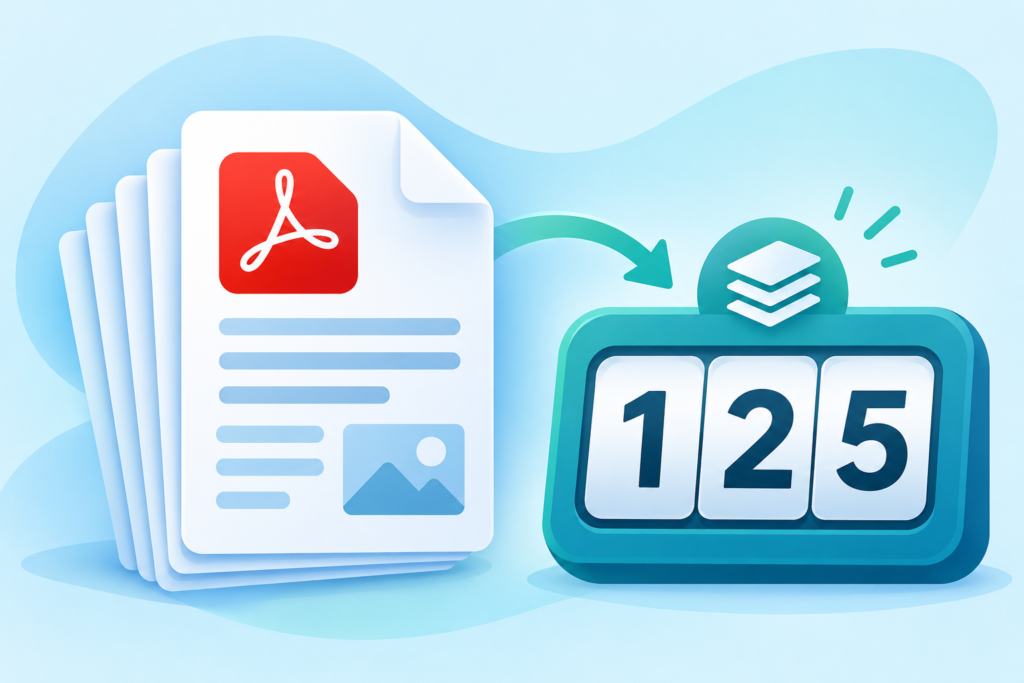
Whether you are checking a manuscript against a publisher's page limit, confirming that a legal bundle is complete, or simply trying to work out how long a report will take to read, you eventually need to answer one question: how many pages does this PDF have?
It sounds trivial. Then you open a 300-page document on your phone, the page numbers in the footer do not match the actual file, and you realise the only reliable answer comes from the file itself. That is exactly what a PDF page counter does.
This guide shows you how to count pages in a PDF quickly and accurately, including how to count several PDFs at once, and how to avoid the mistakes that make page counts wrong.
Why PDF page counts matter more than you think
A PDF page count is more than a number. It affects real decisions:
- Publishing and submissions. Journals, universities and grant programmes often cap submissions at a set number of pages. Going over can mean automatic rejection.
- Printing and postage. Print shops quote by page count and paper stock. A wrong count means a wrong quote.
- Legal and compliance work. Court bundles and contract packs must be complete and in order. A missing page can be a serious problem.
- Reading and study planning. Teachers and students use page counts to plan reading time across a syllabus.
- Billing. Freelance editors, translators and proofreaders often charge per page, so accuracy protects both sides.
The problem is that the page number printed in the footer is not the same as the number of pages in the file. Covers, blank pages and inserted scans can all throw off the visual numbering. To get the true count, you need to read the PDF's internal structure.
Method 1: Use a free online PDF page counter (fastest and most accurate)
The quickest way for most people is the PDF Page Counter on FreeTulz. It reads the actual file, not the printed numbers, so the result reflects the real page count.
Here is how to use it:
- Open the PDF Page Counter in your browser.
- Drag and drop your PDF onto the page, or click to choose it from your file explorer.
- The tool instantly shows the total number of pages.
- If you need more detail, it also breaks the count into portrait and landscape pages and estimates reading time.
- For multiple files, add them all at once. The tool lists each file with its size, total pages, orientation split and estimated reading time.
- Use Export CSV if you want to keep a record, or Reset to start again.
Because the tool runs entirely in your browser, the file is processed on your own device. That matters if you are working with confidential documents such as contracts, medical records or financial statements.
Why the batch feature is useful
Most page counters handle one file at a time. The FreeTulz version accepts a batch, which is ideal when you are:
- Checking a folder of student assignments before marking.
- Auditing a set of invoices or statements.
- Confirming that every file in a document pack is the expected length.
- Preparing a print job with several separate PDFs.
You get one table instead of opening dozens of files one by one, and you can export the results to a spreadsheet for record-keeping.
Method 2: Count pages in a desktop PDF reader
If you already have the file open, most PDF readers show the page count in the interface.
- Adobe Acrobat Reader: The page count appears in the page navigation box, usually as "1 of 24". You can also open the document properties to see the number of pages.
- Google Chrome or Microsoft Edge: Open the PDF, then check the toolbar or the print preview. The print dialog shows the total number of pages before you print.
- macOS Preview: The thumbnail sidebar lists every page, and the page count is shown at the bottom of the window.
- Foxit Reader and similar apps: The status bar or page navigation panel displays the total.
This method is fine for a single file you already have open. It becomes slow when you need to check many documents, and it depends on the reader rendering the file correctly.
Method 3: Use the print dialog (a quick cross-check)
Every major browser and PDF app has a print preview. Open the PDF, choose Print, and look at the page range. The preview usually says something like "1–18 of 18". Cancel the print and you have your count.
This is a good cross-check if you suspect a reader is displaying the file oddly, but it is not efficient for batches and it can be misleading if the print settings are set to print only a selection.
What about file properties in Windows or macOS?
A common myth is that right-clicking a PDF and opening Properties shows the page count. It usually does not. File properties show size, dates and sometimes the author, but the number of pages is stored inside the PDF structure, not in the operating system's file metadata.
That is why a dedicated PDF page counter is more reliable than guessing from file size or footer numbers.
Portrait vs landscape: why the breakdown helps
A total page count tells you how long a document is. The orientation breakdown tells you how it is built. This is useful when:
- Preparing a document for print, where mixed orientation affects layout and binding.
- Checking a scanned file, where a landscape page may indicate a rotated scan.
- Reviewing a design portfolio or brochure where spread pages are intentional.
If you need to go further, the PDF Page Size Detector shows the dimensions of each page, and the PDF Page Aspect Ratio Checker confirms whether pages follow a standard ratio such as A4 or US Letter.
Estimating reading time from the page count
Page count and reading time are related but not identical. A page of dense academic text takes longer to read than a page of presentation slides. The PDF Reading Time Calculator estimates how long a document will take based on its content, which is more useful than a simple pages-per-minute guess.
As a rough rule, an average adult reads about 200–250 words per minute. A typical text-heavy page holds around 500 words, so a 20-page report is roughly 40–50 minutes of reading. Use the estimate as a planning guide, not a precise measure.
Common mistakes when counting PDF pages
Even a simple task has traps. Watch for these:
- Trusting footer numbers. A document may start numbering after the cover, or restart in each section.
- Counting only visible pages. Some PDFs contain hidden or blank pages that still count toward the total.
- Assuming file size equals page count. A 10 MB PDF might be 5 scanned pages or 200 text pages.
- Ignoring scanned inserts. A scanned signature page may be a separate image-based page.
- Using the wrong file version. Make sure you are counting the final export, not an earlier draft.
Frequently asked questions
Is the PDF page counter free?
Yes. The FreeTulz PDF Page Counter is free to use and requires no account.
Can I count pages in several PDFs at once?
Yes. The tool supports batch uploads and shows a table with the page count for each file.
Does the tool upload my PDF to a server?
The tool is designed to process files in your browser, so your document stays on your device.
Can it count pages in a scanned PDF?
Yes. Page count is part of the file structure, so it works whether the pages contain text, images or scans.
Why does the count differ from the printed page numbers?
Printed numbers are added by the document's author and may skip covers or blank pages. The counter reads the actual number of pages in the file.
Can I export the results?
Yes. Use the Export CSV button to save a record of the batch results.
Final thoughts
Counting pages in a PDF should take seconds, not minutes. For a single file, your PDF reader or print preview will do. For anything involving multiple documents, confidentiality or a need for a record, a browser-based PDF page counter is faster and safer.
Once you know the page count, the next questions are usually about size, orientation and reading time. FreeTulz has dedicated tools for each, so you can move from "how many pages?" to "is this document ready?" without leaving your browser.