
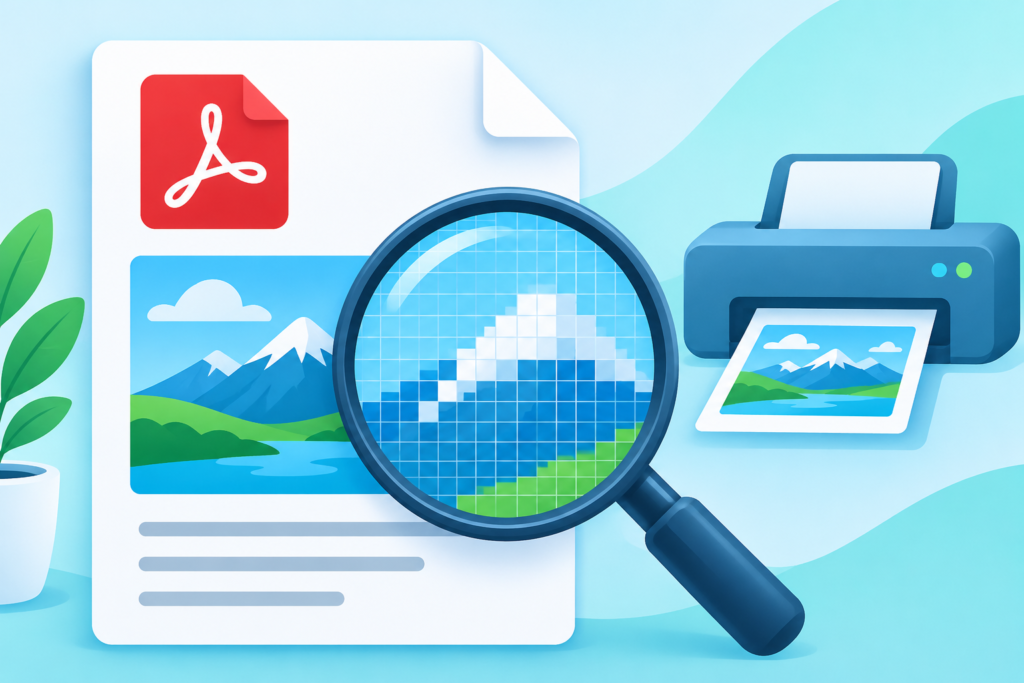
You have designed a brochure, exported it as a PDF, and sent it to the printer. A day later you get an email: "The images are too low resolution." The file looked fine on screen. So what went wrong?
The answer is usually DPI, or dots per inch. A PDF can look perfect on a monitor and still print badly, because screens measure pixels and printers measure dots. Learning how to check the DPI of a PDF before you send it to print saves you time, money and reprints.
This guide explains what DPI means in a PDF, how to check it in seconds with a free online PDF DPI Checker, and what to do when the numbers are too low.
What DPI actually means in a PDF
DPI stands for dots per inch. It describes how many printed dots fit into one inch of paper. The higher the DPI, the more detail the printer can reproduce.
There is a subtlety, though. A PDF does not really have one single DPI. Instead, it contains images, and each image has a resolution measured in pixels. When that image is placed on a page at a certain physical size, the effective DPI is calculated:
Effective DPI = image width in pixels ÷ printed width in inches
For example, a 1,200-pixel-wide image printed at 4 inches wide has an effective resolution of 300 DPI (1,200 ÷ 4 = 300). The same image printed at 8 inches wide drops to 150 DPI.
That is why a PDF can contain a high-resolution photo that still prints poorly: the image may be stretched across too large an area.
Why PDF DPI matters
The right DPI depends on what you are doing with the file:
- Professional printing. Printers generally want 300 DPI for photos and detailed artwork at final size. Some large-format work can use 150 DPI because the viewing distance is greater.
- Home and office printing. 150–200 DPI is often acceptable for internal documents, while 300 DPI is safer for anything customer-facing.
- Screen and web use. 72–96 DPI is enough because screens do not need print-level detail. A web PDF can be small and still look sharp.
- Signage and posters. Large banners are often printed at 100–150 DPI because they are viewed from several feet away.
Sending a 72 DPI image to a 300 DPI print job is the most common cause of blurry, pixelated output. Checking the effective DPI before printing is the simplest way to catch the problem early.
How to check the DPI of a PDF step by step
The fastest method is a dedicated tool that reads the images embedded in the file. The FreeTulz PDF DPI Checker does exactly that.
- Open the PDF DPI Checker.
- Drag and drop your PDF onto the page, or click to select it.
- The tool analyses the images embedded across the document's pages.
- Read the DPI audit report, which shows the effective resolution of each image.
- Look for any images below your target DPI. The tool highlights low-resolution areas so you can find them quickly.
The report is the important part. It tells you not just whether the file is "high resolution" in general, but which specific images are likely to fail at print size.
What the report tells you
A good DPI audit separates the images in your PDF and reports the effective resolution of each one. When you review it, ask:
- Which images are below 300 DPI? These are the ones a printer will flag.
- Are the low-DPI images decorative or important? A faint background texture may be fine at 150 DPI; a product photo will not be.
- How large is each image placed? A small logo at 200 DPI can still look sharp because it occupies little space.
- Are there repeated images? The same logo used on every page only needs fixing once.
What DPI should a PDF be?
There is no single answer, but these guidelines cover most situations:
| Use case | Recommended effective DPI |
|---|---|
| Professional print (brochures, flyers, cards) | 300 DPI |
| Photo books and fine art | 300–600 DPI |
| Office documents and reports | 150–200 DPI |
| Large-format posters and banners | 100–150 DPI |
| Web and screen-only PDFs | 72–96 DPI |
| Scanned text documents | 200–300 DPI |
If you are unsure, 300 DPI is the safe default for anything that will be printed commercially. It balances quality and file size without going overboard.
How to fix a low-DPI PDF
Finding the problem is only half the job. Here is how to fix it, depending on the cause.
1. Re-export from the original design file
If you still have the source file (InDesign, Illustrator, Canva, Word, PowerPoint), the cleanest fix is to re-export with higher-quality image settings. Look for options such as "high quality print", "press quality" or a custom DPI setting of 300.
2. Replace low-resolution images at the source
If a specific photo is the problem, replace it with a higher-resolution version before exporting. Upscaling a low-resolution image with software can help, but it cannot invent detail that was never captured. For a quick improvement, an Image Upscaler can enlarge an image, though true print quality still depends on the original.
3. Reduce the printed size of the image
Remember the formula: effective DPI goes up when the printed size goes down. If an image is 1,200 pixels wide and you need 300 DPI, it can cover 4 inches. Making it smaller on the page raises the effective resolution without changing the file.
4. Compress selectively, not globally
Large PDFs are often compressed to make them easier to email. Heavy compression can reduce image quality. If you need a smaller file for sharing, use a dedicated compressor that lets you keep print-resolution images intact where they matter.
Common DPI myths
- "A PDF has a single DPI." It does not. DPI is a property of each image at its placed size.
- "72 DPI is always bad." 72 DPI is fine for screen viewing. It is only a problem when printed large.
- "Higher DPI always means better." Beyond the printer's capability, extra DPI adds file size without visible benefit.
- "The file size tells you the DPI." A small PDF can contain sharp vector text and a large one can contain blurry images. You have to inspect the images.
DPI vs PPI: a quick clarification
The terms are often used interchangeably, and for practical purposes you can treat them the same. Strictly speaking, PPI (pixels per inch) describes image resolution, while DPI describes printer dots. When a tool reports "effective DPI", it is usually calculating PPI at the placed size. Either way, the number tells you how much detail will survive printing.
Frequently asked questions
Is the PDF DPI Checker free?
Yes. The FreeTulz PDF DPI Checker is free to use for checking image resolution in a PDF.
Can I check multiple PDFs at once?
The tool is designed for one file at a time, which keeps the report clear and focused. Check each print-ready file individually before sending it out.
Does the tool show DPI for text?
Text in a PDF is usually vector-based and resolution-independent, so it stays sharp at any size. The check focuses on embedded images, which are the usual cause of print problems.
What is a good DPI for a PDF sent to a printer?
300 DPI at final printed size is the standard for commercial print. For large-format work, 150 DPI is often enough.
Can I increase DPI after the PDF is made?
You can upscale images, but the best results come from re-exporting from the original design with higher-resolution images. Upscaling improves appearance but cannot recover missing detail.
Why does my PDF look sharp on screen but blurry in print?
Screens display pixels at a small size, so low-resolution images look fine. Printers reproduce the image at its physical size, where missing detail becomes visible.
Final thoughts
Checking the DPI of a PDF takes less than a minute and can save an entire print run. Use the PDF DPI Checker to see the effective resolution of every image, compare it with the recommended DPI for your use case, and fix problems at the source before you send the file.
If you are preparing a document for print, it also helps to confirm the page dimensions and orientation. The PDF Page Size Detector and PDF Page Aspect Ratio Checker make good companions to the DPI check, so you can catch layout issues at the same time.