
You have been handed a beautifully designed PDF and asked to match its typography. Or you are recreating a brand deck and need to know exactly which typeface the original used. Or you are a developer who needs to confirm that the fonts in a client's document are actually embedded before it goes to print.
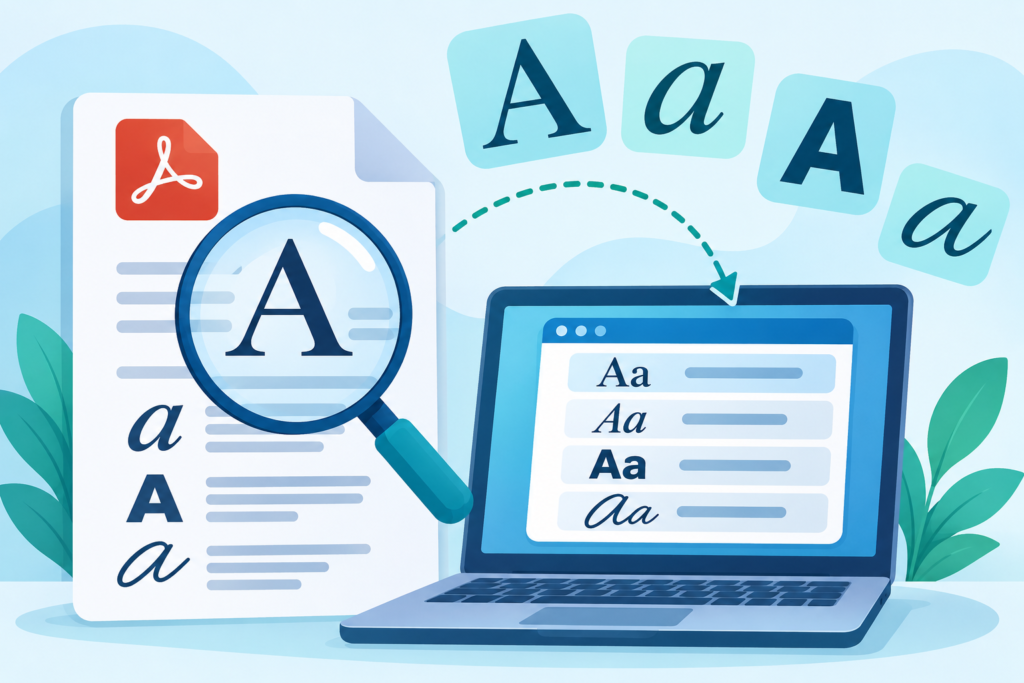
In all these cases, the question is the same: what fonts are inside this PDF, and can I extract them?
A PDF does not store fonts the way a design file does. It stores font information in its internal structure, sometimes embedding the actual font data and sometimes only referencing a font by name. Knowing how to read that information is the key to extracting fonts reliably.
This guide explains how PDF fonts work, how to extract them with a free online PDF Font Extractor, and how to interpret the results.
Why extract fonts from a PDF?
There are several practical reasons to inspect the fonts in a PDF:
- Design matching. You want to recreate a layout and need the same typefaces.
- Brand consistency. You are checking whether a document uses approved brand fonts.
- Print preparation. You need to confirm fonts are embedded so the printer's system does not substitute them.
- Web development. You are building a page that mirrors a PDF and need to identify the font family.
- Competitive research. You are studying the typography choices of a competitor's report or brochure.
- Licensing checks. You want to see whether a font is embedded and whether it is a subset.
Each of these needs slightly different information. A good font extractor gives you the font name, the font type, the encoding and the embedding status, so you can answer all of them in one pass.
How fonts work inside a PDF
When you export a PDF, the software can do one of three things with each font:
- Embed the full font. The entire font file is included, so the PDF displays correctly on any device.
- Embed a subset. Only the characters actually used in the document are included. This keeps the file smaller but means the PDF does not contain the complete font.
- Reference the font without embedding it. The PDF records the font name but relies on the reader's system to supply it. If the reader does not have it, a substitute font is used.
For reliable printing and sharing, embedding is essential. That is why "are the fonts embedded?" is one of the first things a print professional checks.
Common PDF font types
When you extract fonts, you will usually see one of these types:
- TrueType. A common format for both screen and print, widely supported.
- Type 1. An older PostScript format, still found in professional print files.
- Type 0 (CID). A composite font format often used for languages with large character sets, such as Chinese, Japanese or Korean.
- OpenType. A modern format that can contain advanced typographic features.
Seeing the type helps you understand compatibility. If a PDF uses a Type 1 font that is not embedded, for example, you may have trouble reproducing it on a modern system.
How to extract fonts from a PDF step by step
The quickest method is a browser-based tool that reads the PDF's font structure. Here is how to use the FreeTulz PDF Font Extractor:
- Open the PDF Font Extractor.
- Drag and drop your PDF onto the page, or click to select it.
- The tool scans the document and lists every embedded font it finds.
- Review the results table, which shows the font name or family, type or format, encoding, embedding status and subset prefix.
- Use Copy Font List to paste the details into a document or message.
The summary at the top gives you a quick overview: total unique fonts, how many are embedded, how many are subsets and a compatibility indicator.
What each column means
- Font name / family. The typeface name, such as the family and style.
- Type / format. TrueType, Type 1, Type 0 and so on.
- Encoding. How characters map to glyphs. This matters for special characters and non-Latin text.
- Embedded status. Whether the font data is inside the PDF or merely referenced.
- Subset prefix. A short code added to subset fonts, indicating that only some characters are included.
Embedded vs subset vs not embedded
These three states are the most important part of the report, so it is worth understanding them clearly.
Embedded means the PDF contains the font data. The document will display and print correctly even on a machine without the font installed. This is the ideal state for final files.
Subset means only the characters used in the document are embedded. This is common and usually fine for viewing and printing, but the PDF does not contain a complete font file you can install and reuse. If you see a subset prefix, treat the font as "identifiable but not fully available".
Not embedded means the PDF only references the font by name. The file may look correct on your computer because you have the font installed, but it can display differently on another device or at the printer. This is a warning sign for any document that will be shared or printed professionally.
Can you download the actual font files?
This is where expectations need to be managed. Extracting font information is not the same as extracting a usable font file.
- If a font is fully embedded, some tools can export the embedded font data, but licensing may restrict what you can legally do with it.
- If a font is subset, the extracted data contains only the characters used, so it is not a complete font.
- If a font is not embedded, there is no font file to extract at all — only the name.
Fonts are licensed software. Even when you can technically extract data from a PDF, you should check the licence before installing or redistributing a font. For most design work, the practical outcome is: identify the font name, then obtain it legitimately from the foundry or a licensed source.
Using the font name to find the typeface
Once you have the font name, the next step is usually to source it. A few tips:
- Note the exact style. "Inter Bold" and "Inter Regular" are different files.
- Check the foundry. Many fonts are sold by specific foundries, and the name often points to the source.
- Look for free alternatives. If the original is expensive or unavailable, a similar open-source font can often match the look closely.
- Verify the licence. Free for personal use is not the same as free for commercial use.
Common problems when extracting fonts
- Scanned PDFs show no fonts. A scanned document is made of images, not text, so there are no font records to extract. You would need OCR first. The OCR tools category can help turn scanned pages into text.
- Only a subset is listed. This is normal for many exported PDFs and does not mean extraction failed.
- The font name looks strange. Subset prefixes and internal PostScript names can differ from the marketing name. Compare the family name, not just the prefix.
- A font appears but is not embedded. The document may still display on your machine, but it is not safe to share or print elsewhere.
Font extraction vs font viewing
The terms overlap, but there is a difference in emphasis. A font viewer helps you browse and inspect typography, while a font extractor focuses on pulling font details out of a document. The FreeTulz PDF Font Viewer is useful for a broader look at the fonts in a file, while the PDF Font Extractor gives you the structured list you need for reporting and checking.
If you also need to know how many fonts a document uses, the PDF Font Counter provides a quick count.
Frequently asked questions
Is the PDF Font Extractor free?
Yes. The FreeTulz PDF Font Extractor is free to use and requires no installation.
Does it download the font files for me?
It identifies the fonts and reports their details. Whether a font file can be exported depends on embedding and licensing. In most cases, you will use the name to source the font legitimately.
Why does my PDF show only subset fonts?
Many design tools embed only the characters used in the document to keep the file small. A subset is normal and usually fine for viewing and printing.
Can I extract fonts from a scanned PDF?
No. A scanned PDF contains images, not text or font data. Run OCR first if you need to work with the text.
What does "not embedded" mean?
The PDF references the font but does not contain it. The document may look wrong on a device that lacks the font, so it is risky for sharing and printing.
Is it legal to extract fonts from a PDF?
Identifying a font is generally fine. Installing or redistributing font software may be restricted by its licence, so always check the terms.
Final thoughts
Extracting fonts from a PDF is part science, part detective work. The tool gives you the facts — font names, types, encodings and embedding status — and you use those facts to match designs, check print readiness or satisfy a brand guideline.
Start with the PDF Font Extractor, read the embedding status first, and treat the font names as the beginning of the process rather than the end. With the right information in hand, matching or sourcing a typeface becomes a quick, confident task instead of a guessing game.